
Introduction: Why VIP Files Matter for Your Embroidery Machine
You have a logo ready to sew, but your machine asks for a file format you have never heard of. VIP. It sounds fancy, but it is just a language your embroidery machine understands. Without the right conversion, your beautiful logo stays stuck on your computer screen while your machine sits idle.
I have helped hundreds of shop owners and hobbyists make this conversion. The process does not have to be scary or technical. You just need a clear roadmap and someone who knows the shortcuts. That is exactly what I will give you here.
Learning how to Convert Logo to VIP Embroidery File properly saves you hours of frustration. A bad conversion gives you thread breaks, misaligned colors, and designs that look nothing like your original artwork. A good conversion runs smoothly from the first stitch. Let me walk you through each step so you understand exactly what happens behind the scenes, whether you do it yourself or hire a professional.
What Is a VIP File and Who Uses It
Before I dive into the steps, let me clarify what a VIP file actually is. VIP stands for Viking Pfaff, and it is the native file format for many Pfaff and Husqvarna Viking embroidery machines. These machines read VIP files more reliably than generic formats like DST or PES.
If you own a Pfaff Creative series or a Husqvarna Viking Designer series, you need VIP files for the best results. Your machine can read other formats, but VIP gives you full access to color sorting, stitch previews, and machine-specific optimizations.
Think of VIP as speaking your machine’s native language. You could communicate with hand gestures, but actual words work much better. VIP files give your machine clear, precise instructions with no translation errors.
Step One: Prepare Your Original Artwork
The first step happens before any digitizing software opens. I look at your original logo and ask myself a few questions. Is the artwork clean and high resolution? Does it have clear color separation? Are there any tiny details that might cause problems?
You help me most by sending the largest file you have. A 500x500 pixel logo works, but a 2000x2000 pixel logo gives me ten times more detail. If you have a vector file like an AI or EPS, send that instead. Vectors have no pixels at all, just mathematical curves that trace perfectly.
I also need to know your finished size. A logo that looks great at four inches wide might turn into a mess at one inch wide. Tell me the exact dimensions you plan to sew. I note those measurements before I start digitizing.
If your logo has text, write out the exact font name if you know it. If you do not know the font, I can match it closely or trace it manually. Just do not expect me to guess. Clear communication here saves edits later.
Step Two: Manual Tracing of Every Element
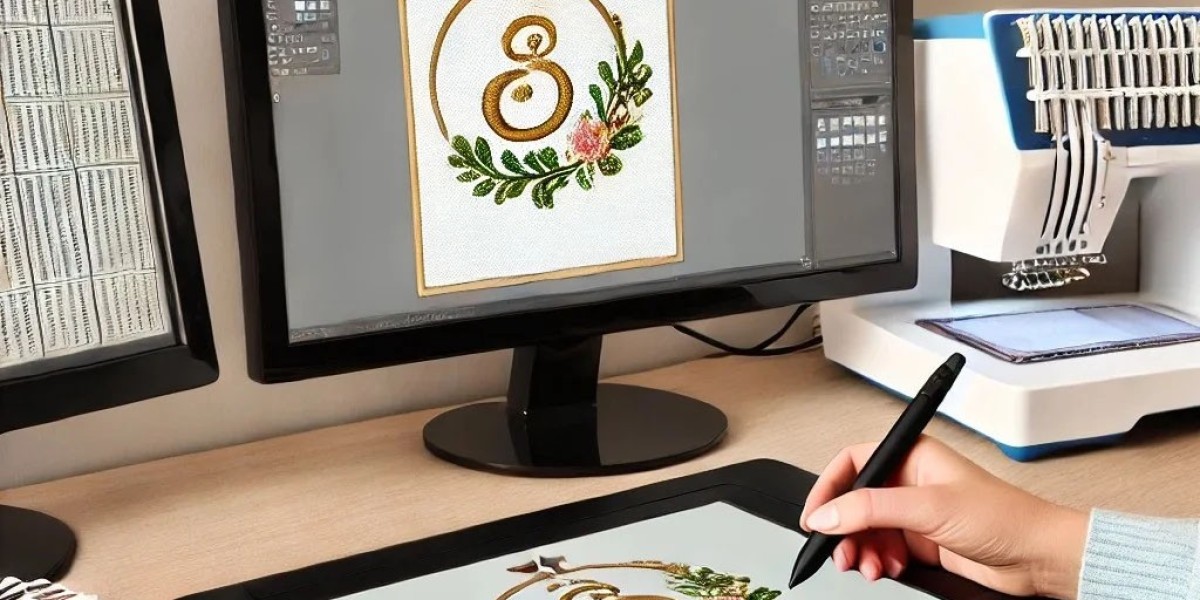
Now I open my digitizing software. I do not use any auto-trace feature. Auto-trace might work for simple shapes, but it creates jagged nodes that turn into lumpy stitches. I place every point by hand.
I start with the largest background shapes first. A solid circle behind your text gets traced as a smooth curve. I click to set anchor points, then adjust the handles until the curve matches your artwork perfectly.
Next I trace the foreground elements. Letters, mascots, decorative lines, each one gets its own path. I keep my points clean and minimal. Too many points make the file larger and slower to sew. Too few points lose the detail of your logo.
I zoom in to four hundred percent for tiny details. A small star or a thin swoosh needs precise placement. One pixel off at this stage becomes a millimeter off on your fabric.
Step Three: Assign Stitch Types to Each Area
With all elements traced, I decide how each one should sew. This step separates beginners from experts.
Large solid areas get a tatami fill stitch. Tatami looks like a brick pattern, with rows of stitches offset from each other. It lays flat and covers evenly. I set the fill angle based on the shape. Circles get a diagonal fill. Long rectangles get a horizontal or vertical fill.
Narrow areas like letter strokes or borders get a satin stitch. Satin stitches run back and forth in parallel lines, creating a raised, shiny surface. I set the stitch density so the satin covers completely without becoming too stiff.
Fine details and outlines get a run stitch. A run stitch is just a single line of stitching. I use it for thin lines under two millimeters wide and for tracing edges to keep satin stitches from drifting.
I also decide where to use a triple stitch for extra hold. Triple stitches go over the same line three times. I use them for underlay and for high-stress areas like corners that might pull loose.
Step Four: Set Stitch Angles for Each Section
Stitch angle changes how your finished design looks and how it wears over time. I set angles carefully based on the shape and purpose of each section.
For satin letters, I angle the stitches perpendicular to the direction of each stroke. A vertical letter like an I gets horizontal stitches. A horizontal bar like the cross on a T gets vertical stitches. This standard rule keeps your text readable.
For tatami fills, I pick an angle that follows the shape. A circular logo gets stitches radiating outward from the center, like the spokes of a wheel. A curved ribbon gets stitches flowing along the curve. Wrong angles create weird shadows and make your design look cheap.
I also avoid sudden angle changes between adjacent sections. If a fill at ninety degrees sits next to a fill at zero degrees, the boundary between them creates a visible line. I keep angle differences under forty five degrees whenever possible.
Step Five: Add Underlay for Stability
Underlay is the foundation of any good embroidery file. It goes down first, before your visible top stitches. Without underlay, your top stitches sink into soft fabrics or drift out of position.
I add different types of underlay based on the fabric and the design.
Edge run underlay traces the outline of each shape with a single run stitch. This keeps your satin border from pulling inward as it sews. I use edge run on every satin section.
Zigzag underlay covers the entire area with a wide, loose zigzag. It acts like a net, holding the fabric flat. I use zigzag underlay for large fill areas on stretchy fabrics.
Center run underlay goes straight down the middle of narrow sections. It gives satin stitches something to grab onto. I use center run for letters and thin borders.
I adjust underlay density based on your fabric. Light underlay for woven cotton. Heavy underlay for fleece and performance fabrics. Your machine sews the underlay first, then the top stitches cover it completely.
Step Six: Apply Pull Compensation
Here is where many digitizers mess up. Fabric moves when you sew it. The needle pulls the fabric sideways slightly with every stitch. Your finished design ends up smaller and narrower than your original artwork.
Pull compensation fixes that by making your design slightly oversized before you sew. After the fabric pulls, it shrinks down to exactly the right dimensions.
I calculate pull compensation as a percentage. For woven cotton, I use one to two percent. For knit polo shirts, three to four percent. For fleece, five to six percent. For performance spandex, seven to eight percent.
I also apply different compensation to different parts of the same design. A dense fill area pulls more than a light run stitch. I compensate each section individually so everything lines up perfectly at the end.
For your Pfaff or Viking machine, I reduce pull compensation by about fifteen percent compared to other brands. Your machine’s dual feed system moves fabric less, so it needs less over-correction.
Step Seven: Plan the Sewing Sequence
The order you sew colors and sections changes how the final design looks. I sequence your design for maximum efficiency and accuracy.
I always sew from background to foreground. The largest background shapes stitch first. Then the middle elements. Then the small foreground details and outlines last. This prevents later stitches from pushing earlier stitches out of place.
I group same-color sections together. Instead of stitching red, then blue, then red again, I stitch all red sections in one pass. Your machine trims less and runs faster.
I sew from the center of the design outward. This keeps fabric tension even in the hoop. If I sew from one edge to the other, the fabric pulls unevenly and your design warps.
I leave outlines for last. Outlines act like picture frames. When they stitch at the end, they lock everything in place and clean up any minor registration issues.
Step Eight: Optimize Trims and Jumps
Every time your machine trims thread, it stops, cuts, and then restarts. Those seconds add up. I reduce trims wherever possible without creating problems.
I set trim commands only for jumps longer than ten millimeters. Shorter jumps, I let the machine drag the thread across the back of the fabric. That loose thread gets covered by later stitches or trimmed by hand after sewing.
I avoid trims inside satin sections. Cutting thread in the middle of a satin column creates a visible overlap where the next stitch starts. I place trims only between distinct sections.
For your VIP file, I embed the trim commands in the format your machine expects. Different machine models handle trims differently. I match the command structure to your specific Pfaff or Viking model.
Step Nine: Export as a VIP File
Now I export your finished file. I open the export menu in my digitizing software and select VIP as the format.
I name your file clearly. No generic names like design1.vip. I use your logo name, the size, and the date. Something like AcmeLogo_4inch_20250612.vip. You thank me later when you are searching through a folder of hundreds of files.
I also embed color change commands. Each color in your design gets a stop command so your machine pauses for you to swap thread. I include the color name in the machine’s display if your model supports it.
I set the hoop size correctly. If your logo measures four inches, I tell the file to expect a hoop that fits it. Wrong hoop settings cause your machine to error out before sewing a single stitch.
Finally, I run a virtual test. My software simulates your VIP file exactly as your machine would sew it. I watch for gaps, overlaps, trim errors, and registration problems. If anything looks wrong, I go back and fix it before sending you the file.
Step Ten: Test Stitch on Your Machine
I always tell my customers to run a real test stitch. Virtual simulations help, but nothing beats seeing the design on your actual fabric with your actual machine.
Hoop a piece of the same fabric you plan to use for production. Use the same stabilizer and the same thread. Run the VIP file exactly as you would for a real order.
Inspect the finished test closely. Check for puckering. Look for gaps between fills and outlines. Feel for stiffness. Read any small text from a normal viewing distance.
If something looks off, take a photo and send it to me. I adjust the file and send you a new version. Good digitizers include free edits until your design runs perfectly.
Once your test passes, save that VIP file in a safe place. Back it up on an external drive or cloud storage. You have just created a file that will serve you for years.
Conclusion: You Now Understand the Whole Process
Converting a logo to a VIP embroidery file involves ten distinct steps. Prepare your artwork. Trace every element manually. Assign stitch types. Set stitch angles. Add underlay. Apply pull compensation. Plan the sewing sequence. Optimize trims and jumps. Export correctly. Test stitch on your machine.
You can learn to do this yourself with months of practice and expensive software. Or you can hire an expert who already owns the tools and has done it thousands of times. Either path works, as long as you end up with a VIP file that runs clean and looks perfect.
Your Pfaff or Viking machine waits for that file. Give it the VIP treatment it deserves. Your logos will thank you with every flawless stitch.